How do I create a shift?
Last updated July 3, 2026
You build the schedule one shift at a time on the Schedule page — a shift is one person, covering one service point, for a set time.
- Open Schedule and find the day you want.
- Click an empty slot (or the Add shift button).
- Choose the person, the service point (desk), and the start and end time.
- Save. The shift appears immediately for everyone viewing the schedule.
Tip
Need the same shift every week? Don't add them one by one — set it up once as a recurring shift.
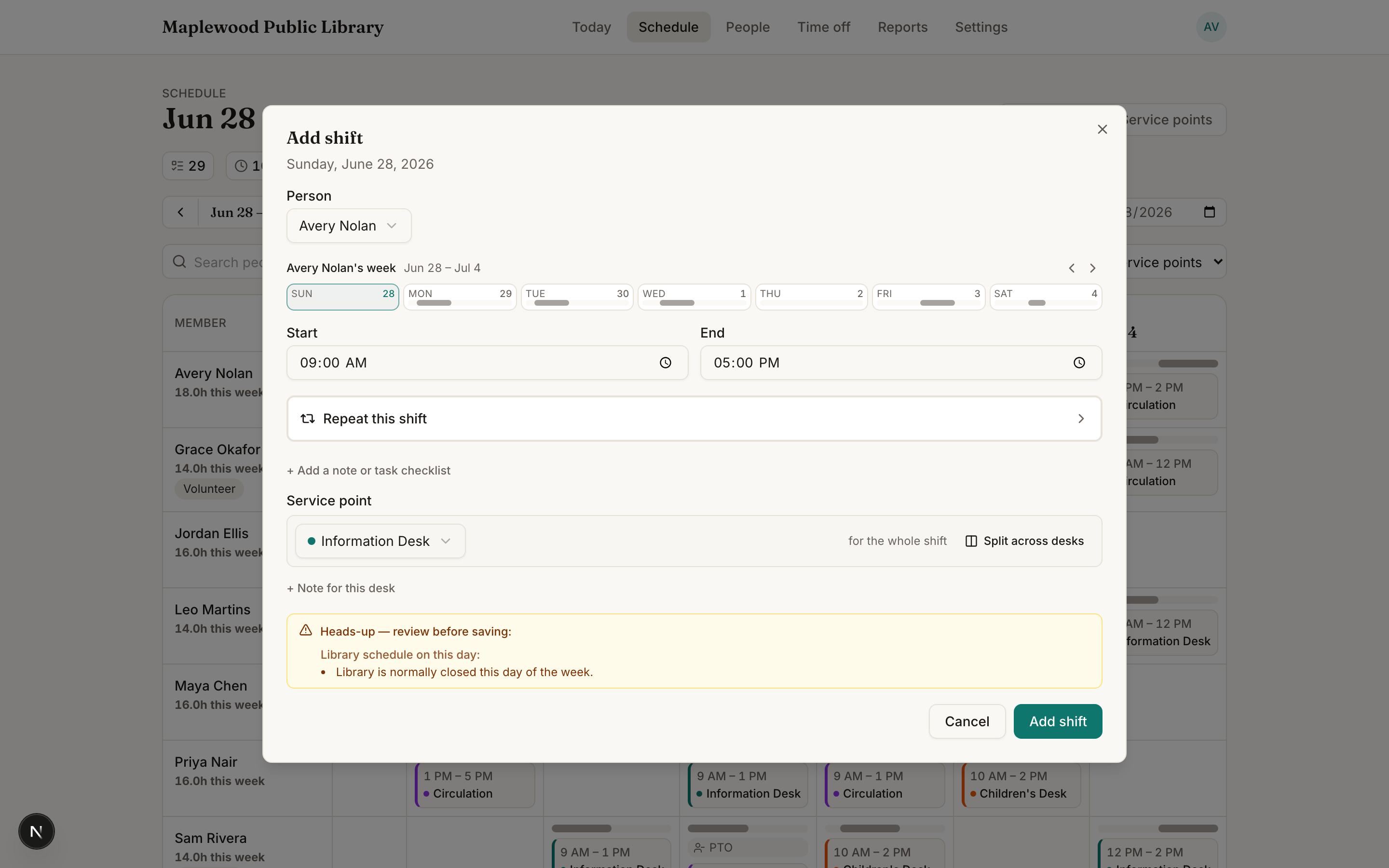
Stacks warns you about conflicts
If the person is already booked, is on approved time off, or the library is closed that day, you'll see a warning before you save — so double-bookings and closed-day mistakes get caught early.
Editing or removing a shift
Click any existing shift to change its time, person, or desk, or to cancel it. For a recurring shift you'll be asked whether the change applies to just this one or all future occurrences.
Was this helpful?