How do I read the schedule?
Last updated July 3, 2026
The Schedule page shows a week at a time, and you can look at it two ways depending on what you're checking.
- Use the view toggle to switch between People (rows are staff) and Service points (rows are desks).
- Filter by name, department, or desk to focus on what matters.
- Read the coverage chips — green means covered, amber means understaffed, red means uncovered.
Tip
Set the filters the way you like, then save your default view so the schedule opens focused on your department every time.
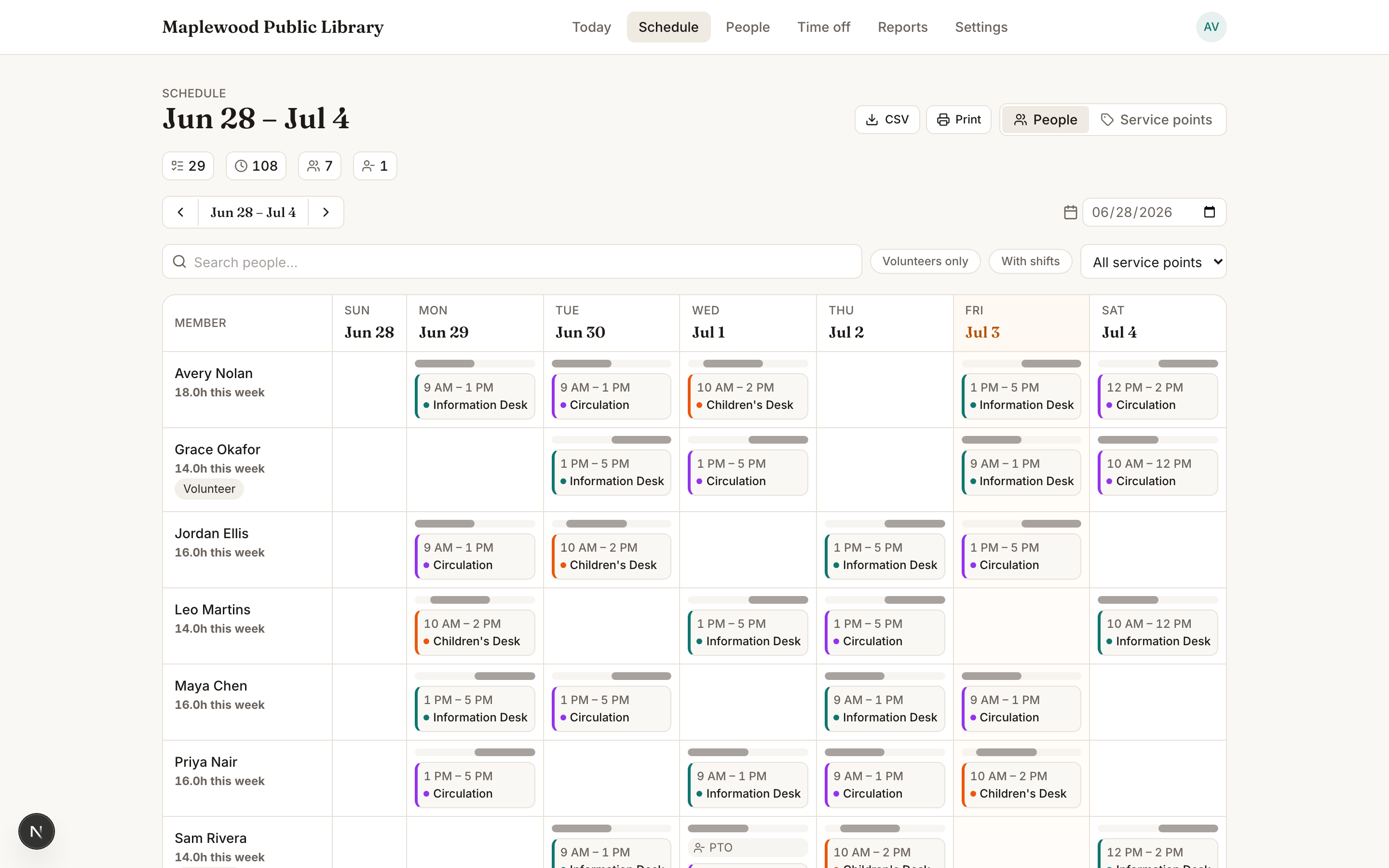
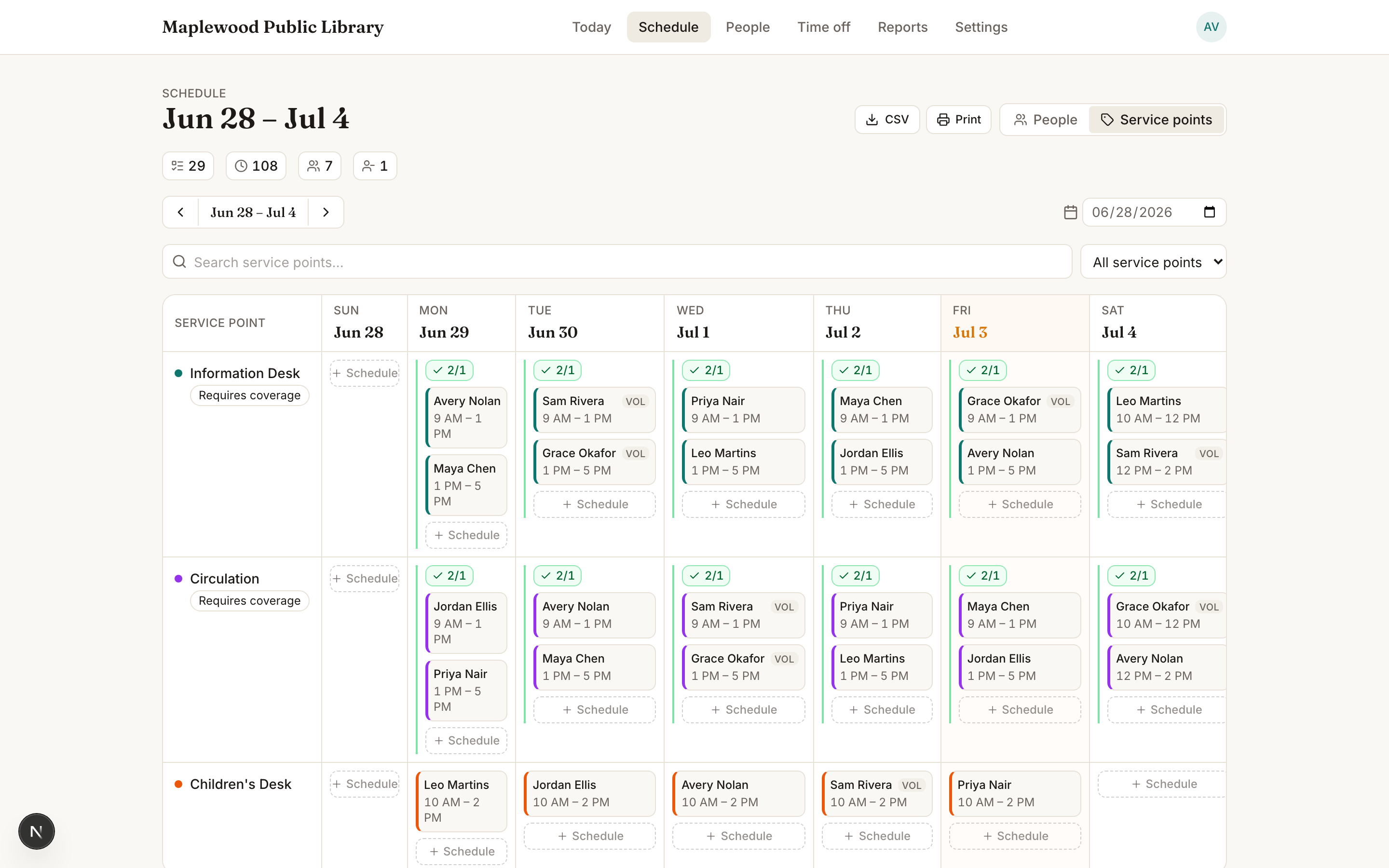
The panel also surfaces weekly stats and warnings — closed-day conflicts, double-bookings, and coverage gaps — so problems are easy to catch before the week starts.
Was this helpful?